Change/Reset a user's Cashbook Login password
Change/Reset a user's Cashbook Login Password

Before starting, you'll need to make sure you are logged into Cashbook as an Administrator. If you have forgotten the password to your account, please contact Practical Systems for assistance
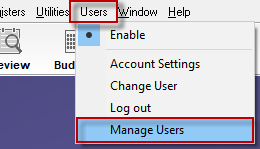
Step 1: Manager Users
- Click on Users
- Manager Users menu option
Step 2: Change Password
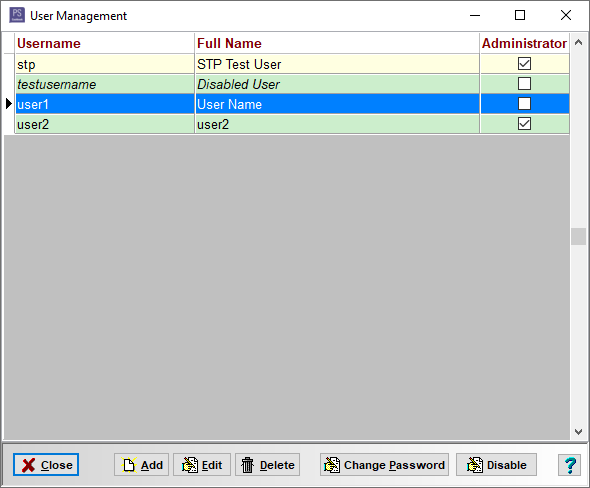
- Click on the user who has forgotten their password to select
- In the bottom of the User Management window, click on Change Password button
Step 3: Confirm Message
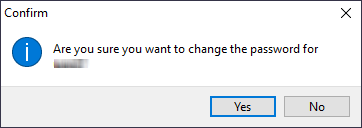
- Click Yes to the following Confirm message:
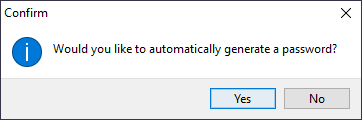
Cashbook will offer to generate a new password for you.
- Click Yes to use an automatically generated password, and go to Step 4a
- Click No to create your own, and go to Step 4b
Step 4a: Automatically Generated Password
- The automatically generated password will be displayed
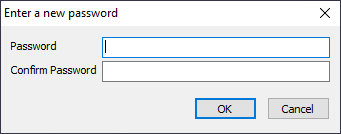
Step 4b: Enter New Password
- Enter the new password for the user, confirm it, then click OK
Step 5: User Change Password
- Give the new password to the user. They will need to use this password to log in. Once logged in, the user can change their password.
Article ID 4379