Data Hosting - Login
To log in to Data Hosting:
- Click on the Setup > Data Hosting menu option.
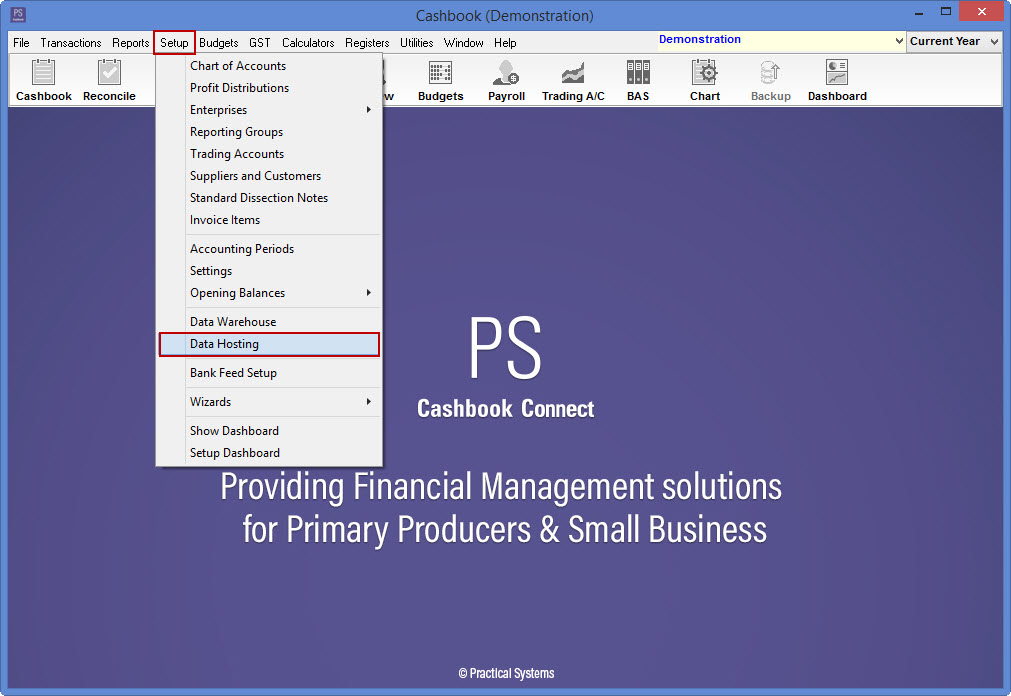
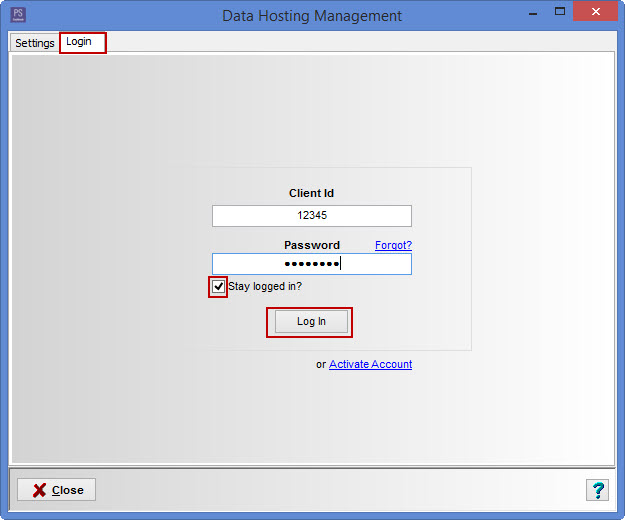
You will automatically be taken to the Data Hosting Management Login window.
- Client Id - type in your Practical Systems Client Id.
- Password - this was the password you created when you initially activated your data hosting account.
- Note: Forgotten your password? - Click on Forgot? Check your inbox for a password reset email. Click on the URL provided in the email and enter a new password.
- Note: If you have not activated your account, click on the following link for step-by-step instructions on How to activate your data hosting account.
- Tick the Stay logged in? check box to save password, so you will now be automatically logged in when you open Data Hosting.
- Click on the Log In button.
- Click Yes to Information message: 'Log in successful.'
- You will automatically be taken to the Data Hosting Management, Hosted Companies window.
Article ID 1770