Single Touch Payroll - How to Configure SuperChoice Login Details

Note: This article assumes User Access has been enabled, and you are already logged in to Cashbook
Step 1: Account Settings
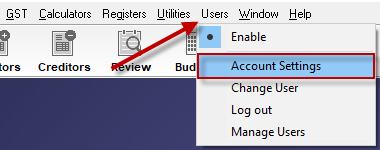
- Go to Users
- Account Settings
Step 2: SuperChoice Details
- Click on the Add SuperChoice Details button
- Re-enter your Cashbook password
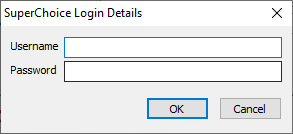
- In the prompt, enter the username you created as part of the SuperChoice Employer Self Enrolment and your password Note: do not use use the temporary password emailed to you
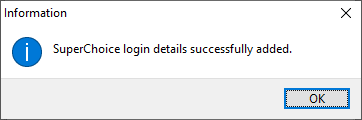
- You should receive a confirmation that your details have been added

Step 3: Save
Click Save to save your changes
CP Article ID 4360